
You sat down to watch something, pressed play, and nothing happened. Or YouTube TV was working fine yesterday and today it refuses to open at all. This guide will get you back to watching as fast as possible.
Why YouTube TV Stops Working (Quick Diagnosis)
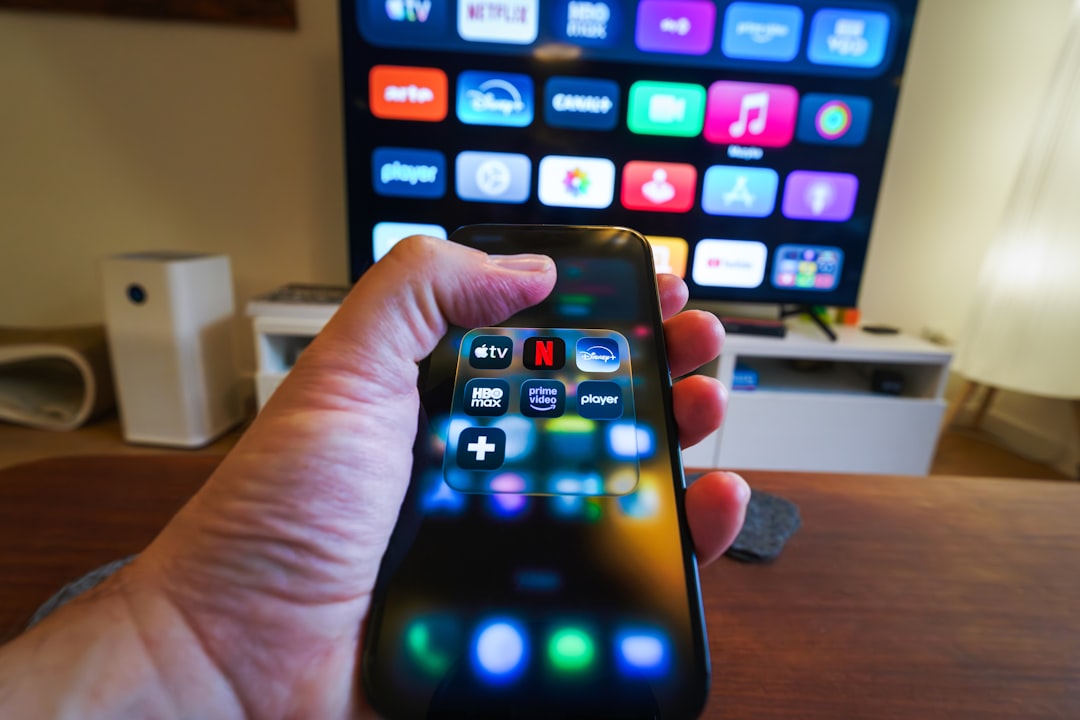
Check 1: Open Netflix or Prime Video. If they all fail, skip to Fix 3. If only YouTube TV is broken, start at Fix 1.
Check 2: Test YouTube TV on your phone on the same network. If it works there, the fault is with your TV. If it fails everywhere, check Downdetector for a live outage.
Check 3: Right after a firmware update points to a software conflict. After moving the TV points to a loose component. A mid-viewing failure points to a connection drop or overheating.
12 Fixes for YouTube TV Not Working
Fixes 1–4: Quick Restarts and Connection Checks
Fix 1: Force Close and Relaunch. Samsung: Home > YouTube TV > hold Enter > Close App. LG: Home > hover YouTube TV > hold scroll wheel > Close App. Sony: Settings > Apps > YouTube TV > Force Stop. Fire Stick: hold Select on YouTube TV > Stop. Apple TV: double-press TV button > swipe YouTube TV upward.
Fix 2: Power Cycle the TV. Turn off, unplug, wait 60 seconds, plug back in. Clears RAM and resets Wi-Fi more effectively than standby.
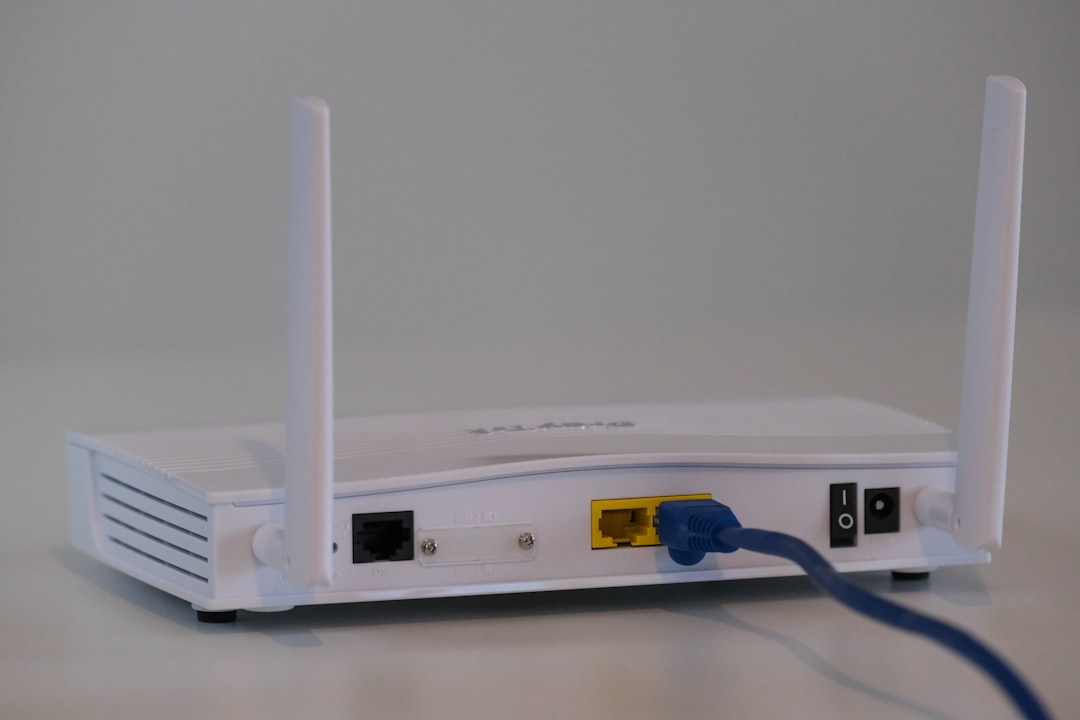
Fix 3: Router Restart and Speed Check. YouTube TV needs 3 Mbps SD, 7 Mbps HD, 25 Mbps 4K. Test at Speedtest.net. Unplug router 30 seconds if below thresholds. Fire Stick: use an HDMI extender to move the stick out from behind the TV.
Fix 4: Check Outage and Account. Check Downdetector. Confirm subscription active at tv.youtube.com. Max three simultaneous streams on one account.
Fixes 5–8: App-Level Fixes
Fix 5: Clear Cache. Samsung: Settings > Support > Device Care > Manage Storage > YouTube TV > Clear Cache. LG: Settings > Apps > YouTube TV > Clear Cache. Sony: Settings > Apps > YouTube TV > Clear Cache then Clear Data. Fire Stick: Settings > Applications > Manage Installed Applications > YouTube TV > Clear Cache. Apple TV: delete and reinstall (Fix 8).
Fix 6: Update App. Samsung: Smart Hub > Apps > YouTube TV > Update. LG: LG Content Store > YouTube TV > Update. Sony: Google Play > YouTube TV > Update. Fire Stick: Find > YouTube TV > Update. Apple TV: App Store > Profile > YouTube TV > Update.
Fix 7: Update Firmware. Settings > Support or Software Update > install updates > restart > test.
Fix 8: Reinstall YouTube TV. Uninstall, unplug TV 60 seconds, reinstall, sign in, test. Samsung greyed-out uninstall: Settings > Support > Device Care > Self Diagnosis > Reset Smart Hub.
Fixes 9–12: Advanced Fixes
Fix 9: Switch to Google DNS (8.8.8.8 / 8.8.4.4). Samsung/LG/Sony: Settings > Network > IP Settings > Manual > DNS 8.8.8.8. Fire Stick: Network > Wi-Fi > Advanced > static IP > DNS 8.8.8.8. Apple TV: Network > Wi-Fi > Configure DNS > Manual > 8.8.8.8.
Fix 10: Fix Location. Per Google’s documentation, YouTube TV verifies location to control access. YouTube TV > Location > Current Playback Area. Mobile: tv.youtube.com/verify. Disable any VPN.
Fix 11: Sign Out and In. YouTube TV app > profile avatar > Settings > Sign Out. Restart TV, reopen, sign back in.
Fix 12: Factory Reset. Samsung: Settings > General > Reset (PIN 0000). LG: All Settings > General > Reset. Sony: Device Preferences > Factory Data Reset. Fire Stick: My Fire TV > Reset to Factory Defaults. Apple TV: System > Reset and Update. Reinstall YouTube TV after reset.
YouTube TV Fixes by Device: Samsung, LG, Sony, Fire Stick, Apple TV
| Device | Most Common Cause | First Fix | Cache Clear | Reinstall |
|---|---|---|---|---|
| Samsung | Smart Hub data or stale cache | Power cycle + Smart Hub Reset | Device Care > Manage Storage > YouTube TV > Clear Cache | Delete from Smart Hub, reinstall from App Store |
| LG | Cache overflow | Memory Optimizer in OLED Care | Settings > Apps > YouTube TV > Clear Cache | Delete App, reinstall from LG Content Store |
| Sony | App data conflict | Force Stop then Clear Cache | Apps > YouTube TV > Clear Cache and Clear Data | Uninstall via Google Play, reinstall |
| Fire Stick | Wi-Fi blocked by TV | HDMI extender + restart | Manage Installed Applications > YouTube TV > Clear Cache | Manage Installed Applications > Uninstall |
| Apple TV | App crash or stale session | Force quit app | Delete and reinstall instead | Long-press icon > Delete, reinstall |
Is It the App or Your Smart TV Hardware?
App problem: YouTube TV fails but Netflix works on the same TV. Fix with cache clear, reinstall, or sign-out.
Platform problem: Multiple apps crash after a firmware update, home screen is sluggish. Per Google’s troubleshooting guidance, this may be a manufacturer issue. Fix with firmware update or factory reset.
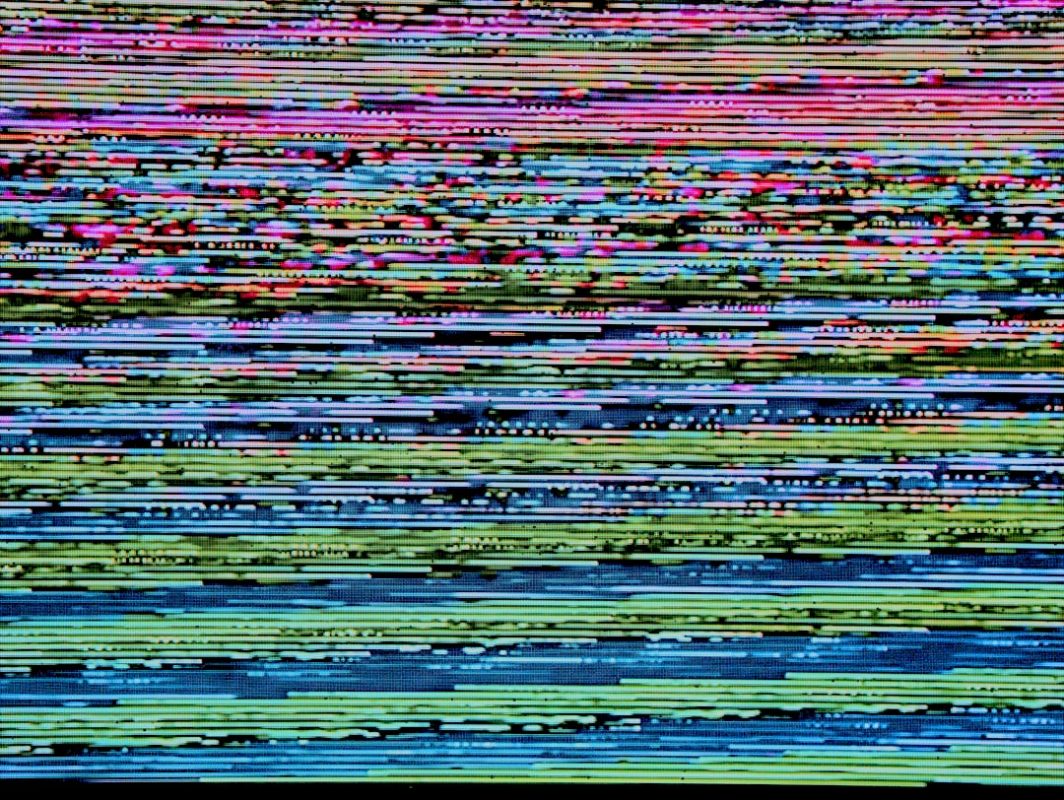
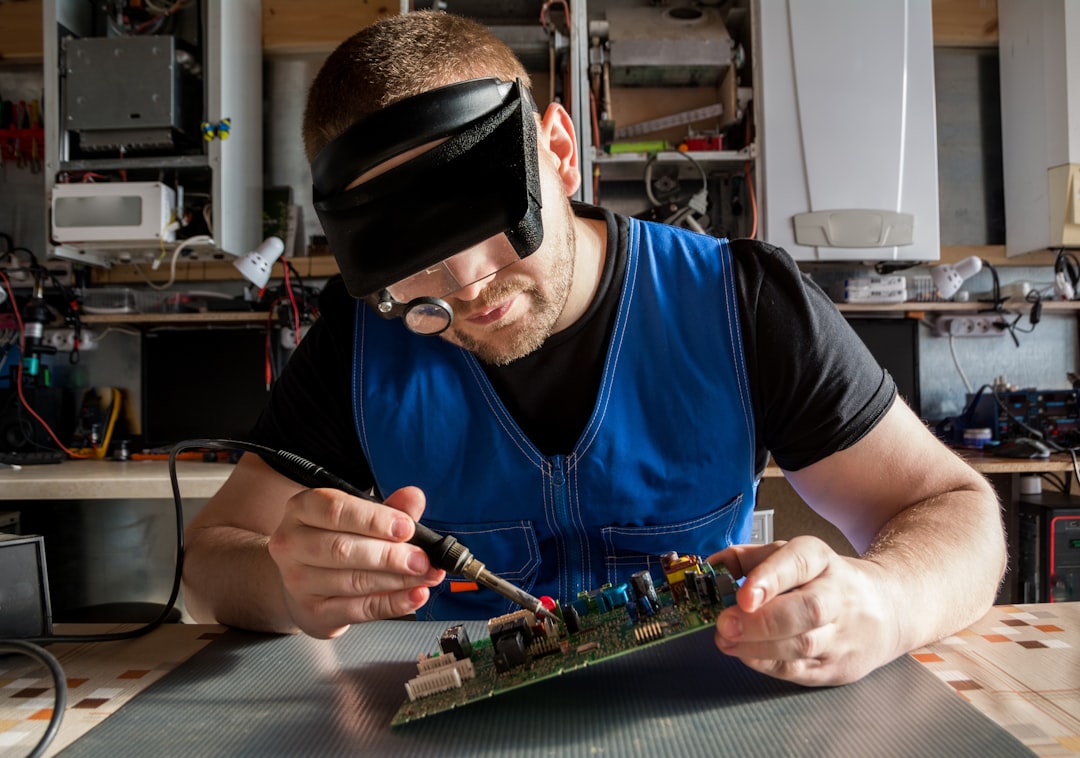
Hardware problem: No Wi-Fi after factory reset, all apps fail, screen distortions in TV menu, TV shuts off randomly. If YouTube TV works on your phone but fails only on your TV after a factory reset, the TV has a component fault. In Abu Dhabi, common causes include a failing Wi-Fi module, degraded main board, or heat and voltage damage. Visit our TV repair Abu Dhabi page for a diagnosis.
Frequently Asked Questions
Still Broken? Book a Same-Day Smart TV Repair
If you have worked through all 12 fixes and YouTube TV is still not working, the problem has moved into hardware territory. Smart Touch Electronics diagnoses the root cause in person across Khalidiyah, Al Reem Island, Khalifa City, Mohammed Bin Zayed City, Mussafah, the Corniche, and all surrounding Abu Dhabi neighbourhoods. Call or WhatsApp Smart Touch Electronics for a free same-day diagnosis — you only pay if you approve the repair quote.
Frequently Asked Questions
Why does YouTube TV keep buffering on my smart TV?
YouTube TV needs at least 7 Mbps for HD and 25 Mbps for 4K. Clear the app cache, restart your router, and connect via Ethernet if possible.
How do I clear the YouTube TV cache on a Samsung TV?
Settings > Support > Device Care > Manage Storage > YouTube TV > View Details > Clear Cache. Restart the TV afterwards.
YouTube TV works on my phone but not my TV – why?
This points to the TV app or platform. Force-close and relaunch, clear cache, check for updates. If unresolved, uninstall and reinstall. Persistent issues may need a firmware update or factory reset.
How many devices can stream YouTube TV at once?
Up to three devices simultaneously. A fourth triggers a playback error. Sign out of unused devices to free a slot.
When should I call a TV repair technician?
When all apps fail, no Wi-Fi is detected after a factory reset, or the screen shows distortion in the TV menu itself. Software fixes will not help at that point.