
Peacock opened fine yesterday and today it shows a black screen, spins forever, or crashes the moment you tap a title. Nine times out of ten the fix takes under five minutes and you do not need a technician. Work through this guide from top to bottom — fixes are ordered fastest to most involved.
Why Peacock Stops Working on Smart TVs
Almost every Peacock failure on a smart TV comes from one of four sources: a corrupted app cache, a firmware version that is no longer compatible, a network connection that cannot sustain the stream, or an account session that has expired or hit its limit. Hardware faults are the rare fifth cause, and if that is what you are dealing with, software fixes will not help.
Before you touch any settings, open Netflix or YouTube on the same TV. If every streaming app is broken, your router or the TV’s network module is the problem — skip straight to the internet section below. If only Peacock is broken, the fault is almost certainly app-level.
Also check Downdetector for Peacock before doing anything else. If Peacock’s servers are down, no local fix will work — you simply have to wait it out.
The five most common causes at a glance
Corrupted cache data. Smart TVs store temporary Peacock files that grow stale over time, causing freezes, loading spinners, and unexpected closures. Clearing the cache is the single most effective fix for these symptoms.
Outdated app or firmware. Devices running older app versions can hit playback errors that no amount of cache clearing will resolve. A firmware mismatch between the TV’s OS and the Peacock app has the same effect.
Weak or congested Wi-Fi. Peacock requires 3 Mbps for standard definition and 8 Mbps for HD and 4K content. In a typical Abu Dhabi apartment with several phones, a laptop, and smart home devices all sharing one router, real-world available bandwidth can drop well below that figure — especially during evening peak hours.
Simultaneous stream limit. Peacock allows only three simultaneous streams per account. A fourth device triggers an immediate playback error. If another household member left a stream running — or if the app crashed mid-session and the slot was not released — you may need to wait up to ten minutes before the slot frees up.
Expired session or login token. Account authentication tokens expire, especially after a password change or a billing update. Signing out and back in refreshes the token and clears most account-related errors.
Quick Fixes That Work on Any Smart TV
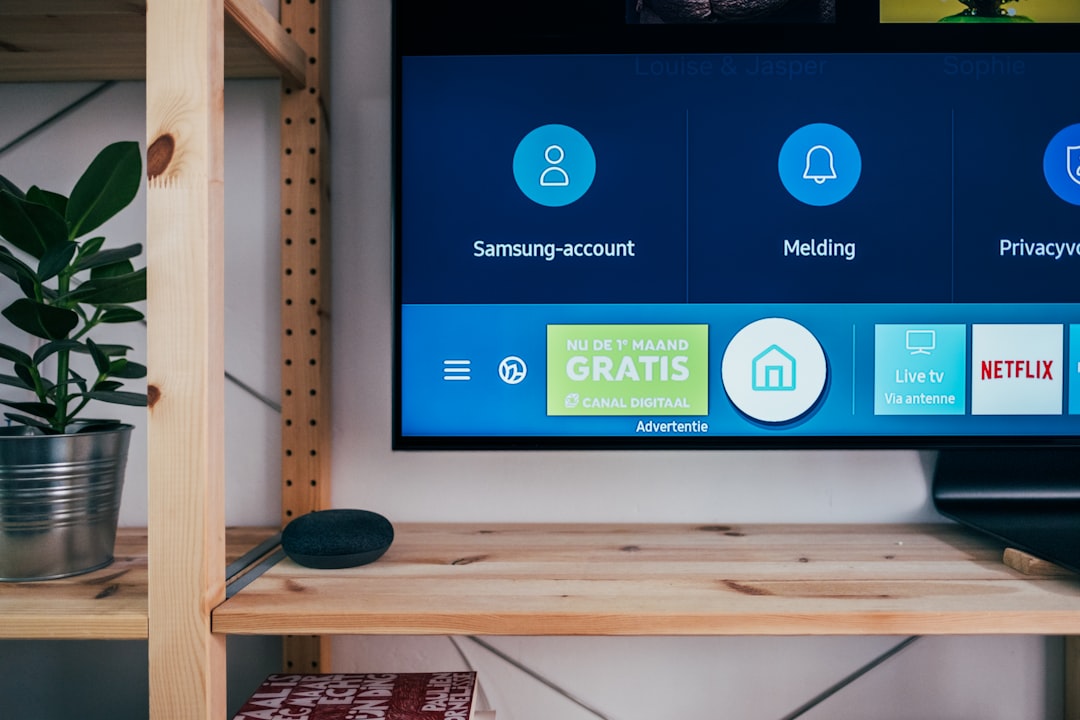
Start here regardless of your TV brand. These four steps resolve the majority of Peacock failures.
Fix 1: Power cycle the TV (60-second unplug)
This is always step one. Turn the TV off, unplug it from the wall socket, and wait a full 60 seconds before plugging back in. Simply pressing the standby button does not clear the TV’s RAM — the unplug is essential. Power cycling fixes roughly 30% of Peacock crashes by resetting temporary memory without erasing any settings.
Abu Dhabi note: During summer months, routers and electronics sitting in warm rooms or utility cupboards can overheat. If your TV feels warm to the touch at the rear vents, let it cool for five to ten minutes before plugging back in. A hot main board can cause random app crashes that look like software faults but are actually thermal shutdowns.
Fix 2: Restart your router
Unplug your router from the wall, wait 30 seconds, and plug it back in. Test your connection speed at Speedtest.net once it reconnects. If your speed is below 8 Mbps on the device you are streaming to, your Wi-Fi — not the Peacock app — is causing the buffering and load failures.
If your router sits in a closed cabinet or warm room, move it somewhere with airflow. Routers placed inside hot electrical cupboards routinely cut their transmission power to protect themselves from heat, which halves your effective Wi-Fi range. A simple repositioning can immediately improve stream quality.
Fix 3: Clear the Peacock app cache
Clearing the app cache removes corrupted temporary files that cause freezing, infinite loading spinners, and unexpected closures. Your Peacock account, watchlist, and subscription are stored on Peacock’s servers and will not be affected. You may need to sign in again after clearing.
Fix 4: Sign out and sign back in
Open the Peacock app, go to your profile, and sign out completely. Restart the TV. Reopen Peacock and sign in fresh. This refreshes the authentication token and resolves errors caused by expired or corrupted session data — particularly effective when Peacock shows account-related error messages or fails to load your subscription content.
Brand-by-Brand Fixes: Samsung, LG, Vizio and Fire TV
Each platform has its own quirks. Use the table below as a quick reference, then follow the detailed steps for your specific device.
| Device | Most Common Peacock Fault | First Fix | Cache Clear Path | Nuclear Option |
|---|---|---|---|---|
| Samsung (Tizen) | Stale cache / frozen Smart Hub | Hold Back button 5 sec to force-close, then power cycle | Settings > Apps > Peacock > Clear Cache | Settings > Support > Self Diagnosis > Reset Smart Hub |
| LG (webOS) | App doesn’t truly reboot on standby | Unplug + hold physical power button 60 sec | Settings > Applications > Peacock > Clear Cache | Settings > All Settings > General > Reset to Initial Settings |
| Vizio SmartCast | “-6 Generic Playback Error” / no cache-clear option | Log out, then System > Reset & Admin > Soft Power Cycle | No native cache clear: uninstall and reinstall | System > Reset & Admin > Reset to Factory Settings |
| Amazon Fire TV | Loading spinner stops / weak Wi-Fi on stick | Use HDMI extender to move stick away from TV body | Settings > Applications > Manage Installed Apps > Peacock > Clear Cache | My Fire TV > Reset to Factory Defaults |
Samsung smart TVs
Samsung’s Tizen OS keeps apps running in the background, which means Peacock can accumulate stale memory even when you think you have closed it. Hold down the Back button on your Samsung remote for 5 seconds while inside the Peacock app to force a true close and return to the home screen. If the app still misbehaves, unplug the TV for 60 seconds to clear the system cache.
For cache clearing: Home > Settings > Apps > Peacock > Clear Cache. Samsung TVs running Tizen OS 6.0 and later also allow you to Clear Data from the same menu — do both if the problem persists.
For firmware: Settings > Support > Software Update > Update Now. Peacock requires current Samsung firmware to authenticate properly. An out-of-date build is a common cause of the app loading but then failing at playback.
Last resort: Settings > Support > Self Diagnosis > Reset Smart Hub. This removes all apps and signs you out of all accounts. Reinstall Peacock from the Samsung App Store afterwards. Use this only if every other step has failed. For deeper Samsung hardware faults such as Wi-Fi module failures or main board issues, see our smart TV repair service in Abu Dhabi.
LG smart TVs
Pressing the power button on an LG remote does not fully reboot the TV — the set enters standby mode, which allows software bugs to accumulate. To force a true reboot, unplug the TV from the wall and hold the physical power button on the TV body for at least 60 seconds. This drains residual capacitor charge and forces a cold restart.
For cache clearing on webOS: Home > Settings > Applications > Running Apps > Peacock > Clear Cache. On LG webOS 6.0+ models the option may appear under Settings > Support > Application Manager instead.
For firmware updates: Settings > All Settings > General > About This TV > Check for Updates. LG TVs have an auto-update feature, but it can silently fail — trigger a manual check if Peacock stopped working after the TV was in standby for several weeks.
Peacock is supported on LG smart TVs running webOS 3.5 or higher (2018 models and newer). If your LG TV is older than 2018, the app may not be available in the LG Content Store — connect a Fire Stick or Roku to your HDMI port as a workaround. If the HDMI ports themselves are behaving erratically, that points to a hardware issue. Our team handles LG TV repairs across Abu Dhabi including HDMI port replacement and main board faults.
Vizio SmartCast TVs
Vizio gives you less control over individual app data than Samsung or LG. There is no dedicated cache-clear option, so the go-to fix for most Vizio Peacock problems is a combination of a log-out and a Soft Power Cycle. If Peacock shows a “-6 Generic Playback Error”, log out of the app, then go to Settings > System > Reset & Admin > Soft Power Cycle, let the TV reboot, check that firmware is up to date, then log back in.
For updates: press the Menu or V button on your Vizio remote, navigate to System > Check for Updates. Vizio checks for updates automatically, but a manual trigger after a Peacock failure is always worth doing.
If the app is entirely missing or cannot be reinstalled, highlight Peacock in the app row, press the yellow button or OK to get removal options, delete it, then search for it again in the Vizio App Store (also called the WatchFree+ Store on newer models).
Switching from a congested 2.4 GHz Wi-Fi band to 5 GHz often resolves persistent Vizio buffering problems even when basic fixes have failed. Go to your router admin page, find the 5 GHz network name, and connect your Vizio to it instead.
Amazon Fire TV (Fire Stick)
Fire TV Sticks plugged directly into the back of a TV can experience interference from the TV’s own HDMI electronics, which weakens the Wi-Fi signal reaching the stick. Use the HDMI extender cable that came in the box to move the stick a few centimetres away from the TV’s rear panel — this alone often improves signal strength enough to stop loading failures.
For cache clearing: Settings > Applications > Manage Installed Applications > Peacock > Clear Cache, then Clear Data. Have your login credentials ready because clearing data will log you out.
For a proper restart: Settings > My Fire TV > Restart — or hold the Select and Play/Pause buttons simultaneously for five seconds. This performs a true software reboot rather than just closing the current app.
Fire TV software update: Settings > My Fire TV > About > Check for Updates. Install any pending updates, restart, then relaunch Peacock.
Is It Your Internet or the App?
Run this quick test before spending more time on app-level fixes: open another streaming app (Netflix, YouTube, Prime Video) on the same TV. If it also buffers or fails, your internet connection is the problem — not Peacock specifically.
Peacock’s speed requirements
Peacock officially requires a minimum of 3 Mbps for standard definition and 8 Mbps for HD and 4K content. Those are bare minimums for a single device on a clean connection. In a real home — with phones, tablets, gaming consoles, and smart home devices all sharing the same router — you want at least 25 Mbps of dedicated bandwidth reaching the TV for reliable HD streaming.
Abu Dhabi network context
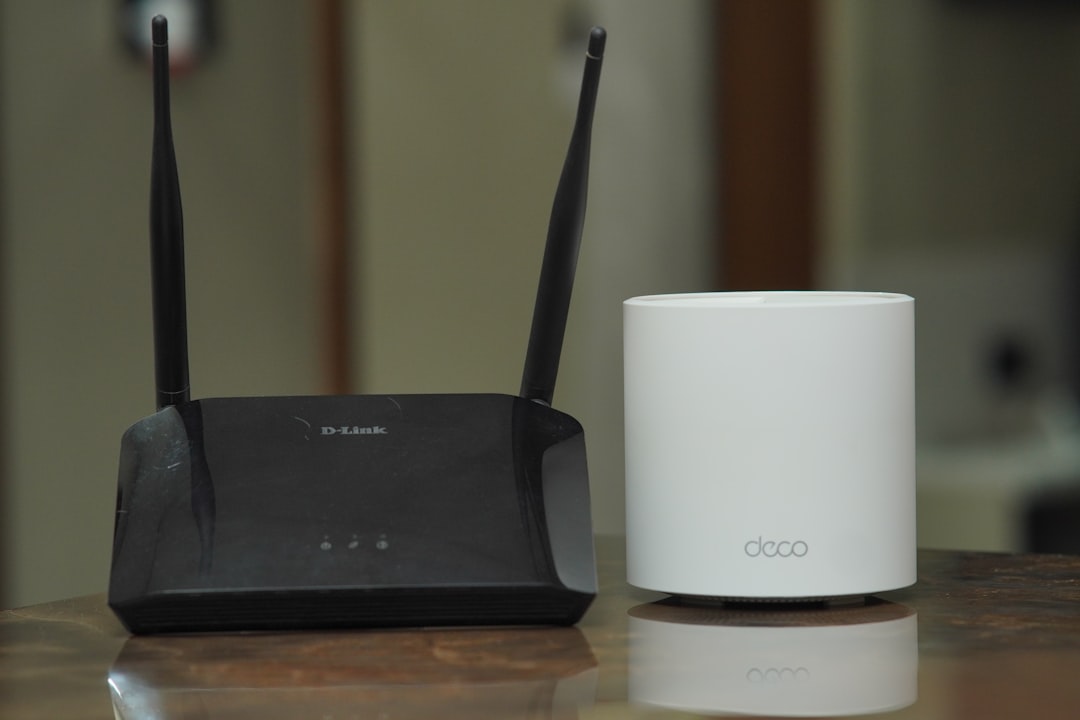
Abu Dhabi ISPs (Etisalat/eLife and Du) generally provide solid speeds on fibre plans, but two local factors quietly degrade the connection that actually reaches your TV.
Router placement in warm rooms. When routers sit in enclosed TV units, hallway cupboards, or utility rooms that reach 35-40°C during Abu Dhabi summers, their processors throttle performance to avoid overheating. The router may show all lights green while delivering half its rated throughput. Move the router to an open shelf with airflow and the problem often disappears.
2.4 GHz congestion in dense buildings. In high-rise buildings across Al Reem Island, Al Khalidiyah, and Corniche-area towers, dozens of routers compete on the same 2.4 GHz channels. Your TV may be receiving a technically connected but heavily congested signal. Switch your TV’s Wi-Fi connection to the 5 GHz network on your router — it has shorter range but far less interference in apartment-dense environments.
Ethernet is always the right answer. If your TV is close enough to your router to run a cable, a wired connection eliminates all of the above problems instantly. Streaming over Ethernet removes interference, heat-related throttling, and signal distance as variables.
Switch to Google DNS for faster Peacock connections
If your speeds test well but Peacock still stutters, your ISP’s DNS servers may be slow to resolve Peacock’s content delivery network addresses. Switching to Google DNS (8.8.8.8 / 8.8.4.4) often speeds up the initial load time noticeably.
Samsung / LG: Settings > Network > IP Settings > DNS Setting > Enter Manually > 8.8.8.8
Fire TV: Settings > Network > Wi-Fi > select your network > Advanced > set IP settings to Static > DNS 8.8.8.8
If you use a VPN on your router or TV, disable it. VPNs can interfere with Peacock’s server connections and trigger authentication blocks that appear as black screens or account errors.
Still getting buffering on Peacock after addressing all of the above? Our YouTube TV troubleshooting guide covers overlapping network and firmware steps that apply to any streaming app on Samsung, LG, and Fire TV — worth a read if you are chasing a stubborn connection fault.
When a Factory Reset or Hardware Repair Is Needed
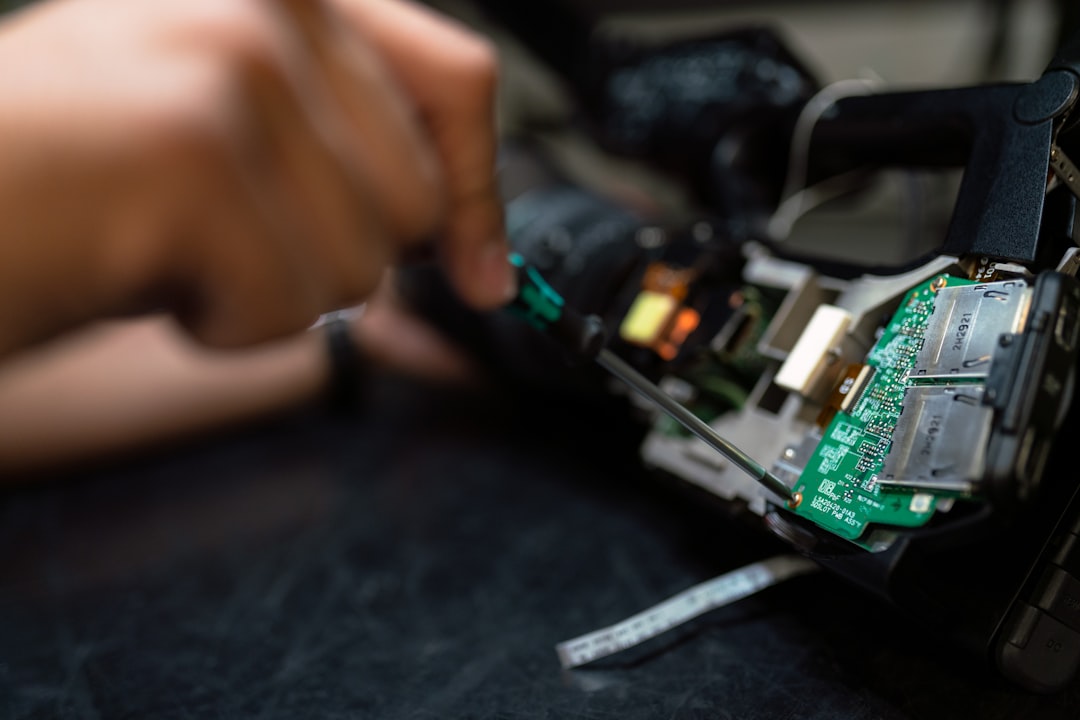
If you have worked through every step above and Peacock is still broken, one of two things is true: the problem requires a factory reset to clear a deep software conflict, or the TV has a hardware fault that software fixes cannot address.
Factory reset: the last software option
A factory reset wipes all apps, accounts, and settings and returns the TV to its out-of-box state. It is disruptive but effective for stubborn software conflicts. Back up your Wi-Fi password and streaming login credentials before starting.
Samsung: Settings > General > Reset (default PIN: 0000).
LG: Settings > All Settings > General > Reset to Initial Settings.
Vizio: Settings > System > Reset & Admin > Reset to Factory Settings.
Fire TV: Settings > My Fire TV > Reset to Factory Defaults.
After the reset, install Peacock fresh, sign in, and test before reinstalling any other apps. If Peacock works at this point, the problem was a deep software conflict — likely introduced by a failed firmware update or a corrupted app installation.
Signs the problem is hardware, not software
Software fixes stop being useful when you see any of these symptoms:
No Wi-Fi detected after a factory reset. If the TV cannot find any Wi-Fi networks after a full reset, the Wi-Fi module on the main board has failed. This is a component-level hardware repair, not a settings issue.
All apps fail, not just Peacock. If Netflix, YouTube, and Peacock all crash or fail to load even after a factory reset, the issue is platform-level — likely a degraded main board or memory fault.
Screen distortion visible in the TV’s own menu. If you see flickering, lines, or discolouration in the TV settings screen itself (not just in the Peacock app), the fault is in the display panel or T-CON board, not the streaming app.
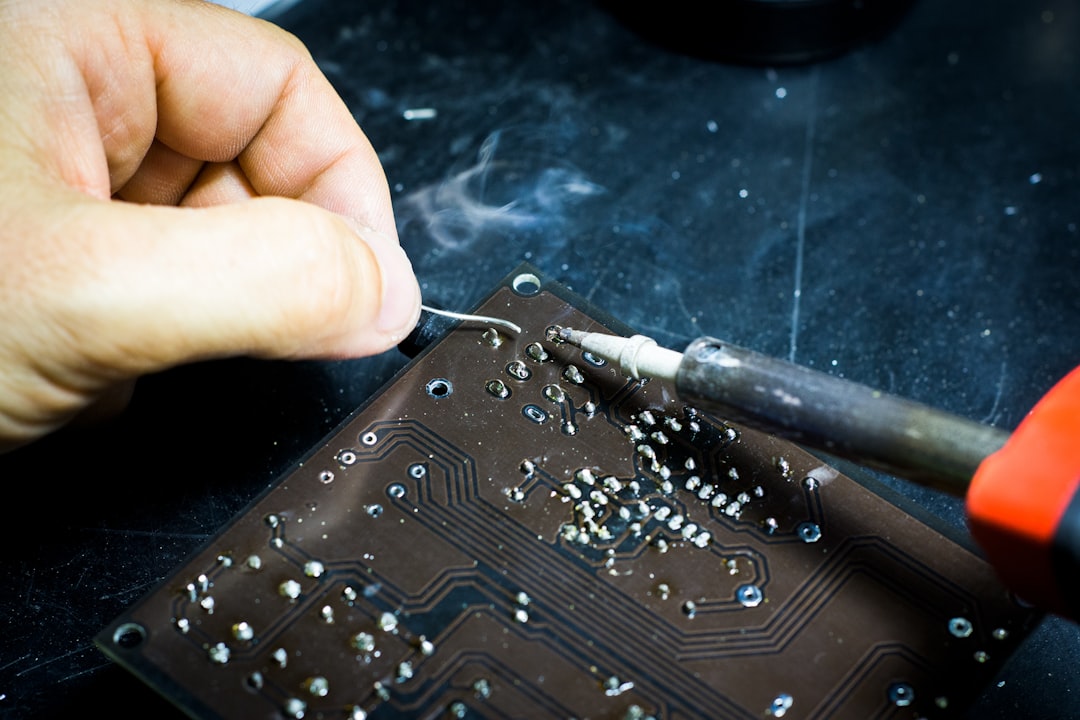
TV shuts off randomly regardless of app used. Random shutdowns during streaming point to a power supply fault. In Abu Dhabi, summer voltage fluctuations are a common cause of power board failures — our technicians see this regularly across TVs in Khalifa City, Mussafah, Mohammed Bin Zayed City, and older villa areas in Al Mushrif.
If any of these symptoms apply, a technician needs to test the hardware. Our TV repair cost guide for Abu Dhabi shows realistic AED price ranges for Wi-Fi module repairs, main board replacements, and power supply faults — useful for weighing repair against replacement before you commit.
تصليح تلفزيونات ابوظبي: إذا استنفدت جميع خطوات الإصلاح البرمجية ولا يزال تطبيق Peacock لا يعمل على تلفازك الذكي، فمن المرجح أن المشكلة في العتاد الداخلي. فريق Smart Touch Electronics يشخّص الأعطال مجانًا ويقدم عروض أسعار شفافة قبل بدء أي إصلاح — سواء كنت في الريم أو الخالدية أو خليفة سيتي أو المصفح.
Smart Touch Electronics diagnoses smart TV hardware faults across Abu Dhabi — Al Reem Island, Khalidiyah, Khalifa City, Mohammed Bin Zayed City, Mussafah, and beyond. Send a WhatsApp message with your TV brand, screen size, and what you are seeing. We confirm same-day availability within minutes, and the diagnosis is free: you only pay if you approve the repair quote.
Frequently Asked Questions
Why does Peacock keep buffering on my smart TV?
Peacock requires at least 8 Mbps for HD streaming. Buffering usually means your available Wi-Fi bandwidth has dropped below that threshold, caused by too many devices sharing the router, a congested 2.4 GHz channel, or a router placed in a warm room that is throttling its own performance. Clear the app cache, restart your router, connect via Ethernet if possible, and switch to the 5 GHz Wi-Fi band to fix most buffering issues.
How do I clear the Peacock cache on a Samsung TV?
Go to Settings > Apps > Peacock > Clear Cache. On Samsung TVs running Tizen OS 6.0 or later you can also select Clear Data from the same menu. Restart the TV afterwards. Your Peacock account, watchlist, and subscription are stored on Peacock’s servers and will not be affected.
Peacock works on my phone but not on my smart TV. Why?
This points to a TV-specific issue: a stale app cache, an outdated firmware version, or a platform-level software conflict. Force-close Peacock and relaunch it, clear the app cache, check for firmware updates, and sign out and back in. If none of those work, uninstall and reinstall the Peacock app. Persistent failures after a factory reset suggest a hardware fault such as a failing Wi-Fi module.
Why does Peacock show a black screen on my TV?
A black screen with audio still playing usually means a corrupted app cache or an expired authentication session. Clear the cache in your TV’s app settings, sign out and back in, and power cycle the TV by unplugging it for 60 seconds. If the black screen appears in the TV’s own menu as well as in Peacock, the fault is a display hardware issue rather than an app problem.
How many devices can stream Peacock at the same time?
Peacock allows a maximum of three simultaneous streams per account. A fourth device triggers an immediate playback error. If an app crash ended a stream without releasing the slot, you may need to wait up to ten minutes before that slot becomes available again on another device.